Reading text
1.4 Being able to deliver the training programs foreseen by the OPTIMA project through the e-learning platform produced by the project
1.4.2 Exercises with platforms
Managing Your Course – Adding Activities
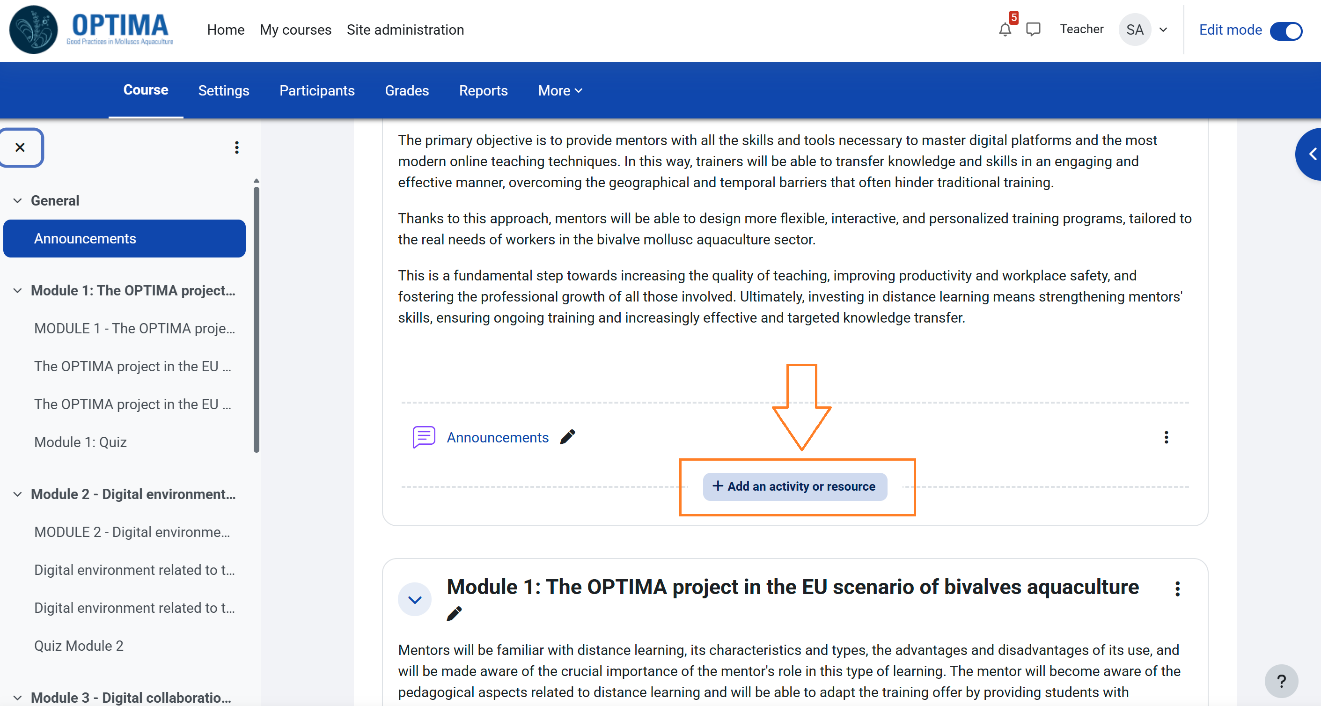
Activities such as assignments, quizzes, and lessons engage learners and assess understanding. Instructors can add an Activity by clicking on the button “Add an activity or resource”, while having turned “Editing On”.
Practical Exercise: Adding a File
Task: Upload a PDF module titled 'Shellfish Farming Best Practices' to your course.
Step-by-Step Solution:
1. Go to your course page and click 'Turn Editing On'.
2. In the desired section, click 'Add an activity or resource'.
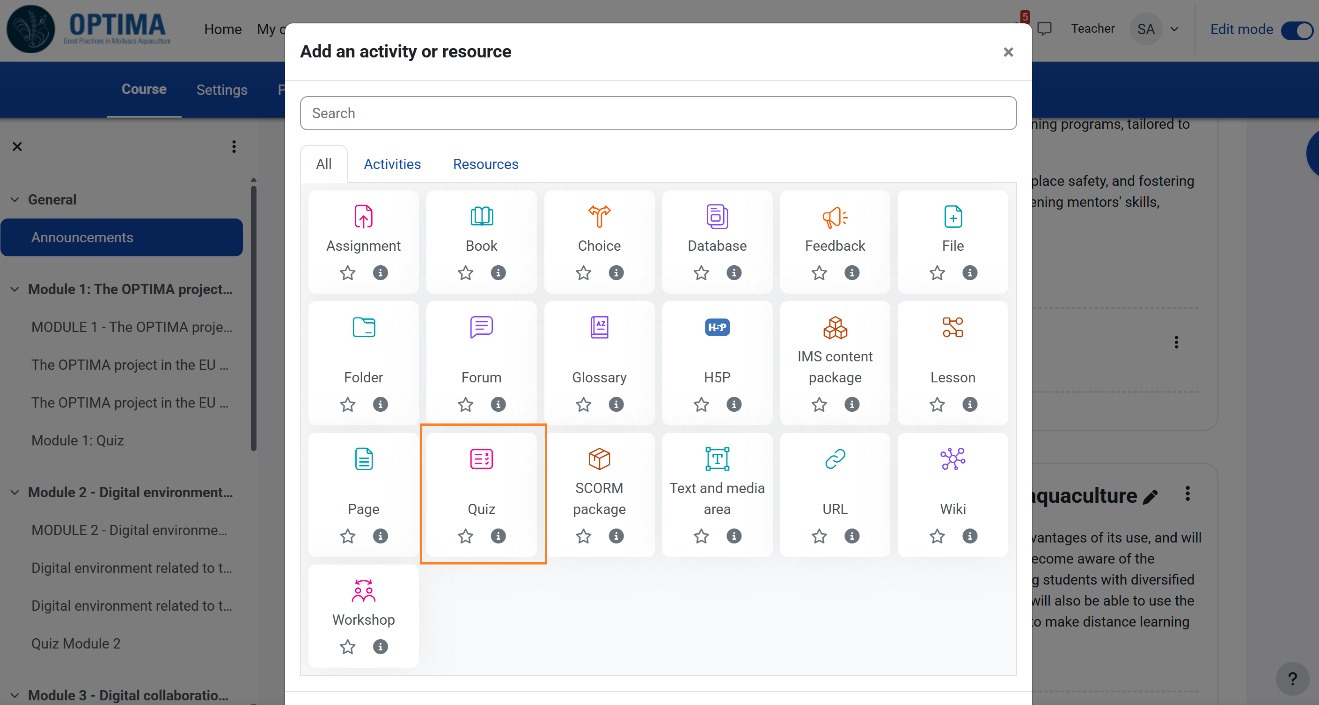
3. Select 'File' and click 'Add'.
4. Enter the name (e.g., 'Shellfish Farming Best Practices').
5. Drag and drop the PDF file into the 'Select files' area (or use the file picker).
6. Add a description if necessary.
7. Click 'Save and return to course'.
8. The file now appears as a clickable link in your course.
Practical Exercise: Adding a Video
Task: Embed a YouTube video on oyster farming into your course.
Step-by-Step Solution:
1. On your course page, click 'Turn editing on'.
2. In the chosen section, click 'Add an activity or resource'.
3. Select 'URL' and click 'Add'.
4. Enter the name (e.g., 'Oyster Farming Video').
5. In the 'External URL' field, paste the YouTube video link.
6. (Optional) Add a description with viewing instructions.
7. Under 'Appearance', select 'Embed' if available.
8. Click 'Save and return to course'.
9. The video link (or embedded player) is now accessible to learners.
Practical Exercise: Creating a Quiz
Task: Create a short quiz in your course to test learners’ understanding of mollusc aquaculture. The quiz should include at least 3 multiple-choice questions.
Step-by-Step Solution:
1. Navigate to your course homepage and click 'Turn editing on'.
2. In the section where you want the quiz, click 'Add an activity or resource'.
3. Select 'Quiz' and click 'Add'.
4. Enter a name (e.g., 'Quiz on Mollusc Farming Basics') and a description.
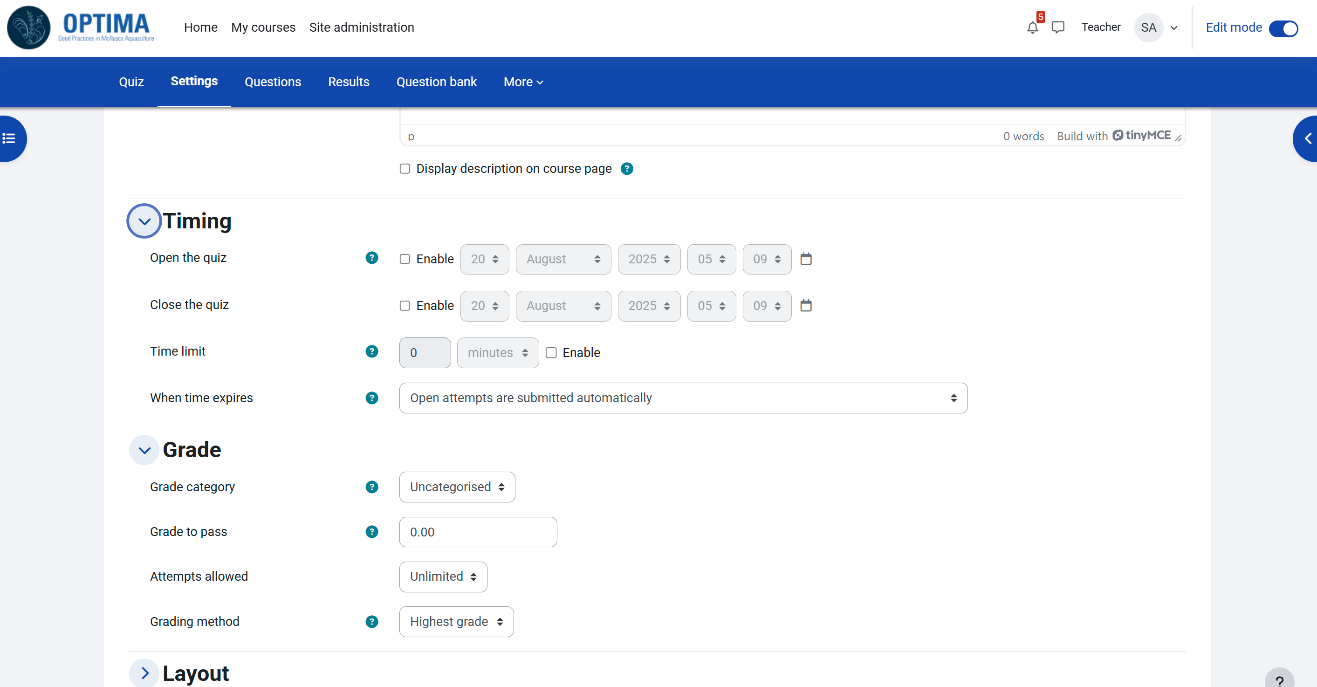
5. Under 'Timing', set the opening and closing dates (optional).
6. In 'Grade', set the maximum grade for the quiz (e.g., 10 points).
7. Click 'Save and return to course'.
8. Now, click the quiz link, then select 'Edit quiz'.
9. Add a new question → choose 'Multiple Choice'.
10. Enter the question text and answer choices, marking the correct one.
11. Save and repeat for more questions.
12. Preview the quiz to check functionality.
Support & Resources – Technical Help
If you experience any technical difficulties or have questions while using the platform, you can contact the OPTIMA support team for assistance. They can be reached by email at info@learn.optima-erasmusproject.eu. The team will respond as soon as possible to help resolve your issue or provide the necessary information. You may also find helpful information and step by step guides in the detailed Moodle Documentation available at https://docs.moodle.org/500/en/Main_page.